WhatsApp Web: A simple guide to WhatsApp Desktop from any device


TL; DR: Quick Summary
- WhatsApp Web helps you manage chats from your browser, making it easier to reply on a bigger screen without always using your phone.
- Setup is fast and simple — just open WhatsApp Web, scan the QR code, and start syncing your conversations in seconds.
- It’s useful for individuals and small-scale use, especially if you want quicker typing, easier file sharing, and a more convenient chat experience on desktop.
- But WhatsApp Web has clear limits for growing businesses, including restricted team access, no advanced automation, limited reporting, and no proper shared inbox for collaboration.
- If your business handles high chat volume or multiple agents, a platform like SleekFlow gives you more control with automation, analytics, integrations, and scalable team workflows.
What is WhatsApp Web?
WhatsApp Web or WhatsApp Business Web is the browser-based version of the WhatsApp mobile app, allowing you to seamlessly sync your chats and messages to your computer. It mirrors your phone's WhatsApp account, letting you view conversations, send and receive messages, and share files directly from a larger screen. You can access it on any modern web browser, making it a convenient tool for both personal and professional use.
WhatsApp Web is also available for WhatsApp Business, allowing you to communicate with your clients from your work desk instead of constantly checking your phone, which enables faster replies and easier file sharing.
How to add and use WhatsApp Web: A step-by-step guide
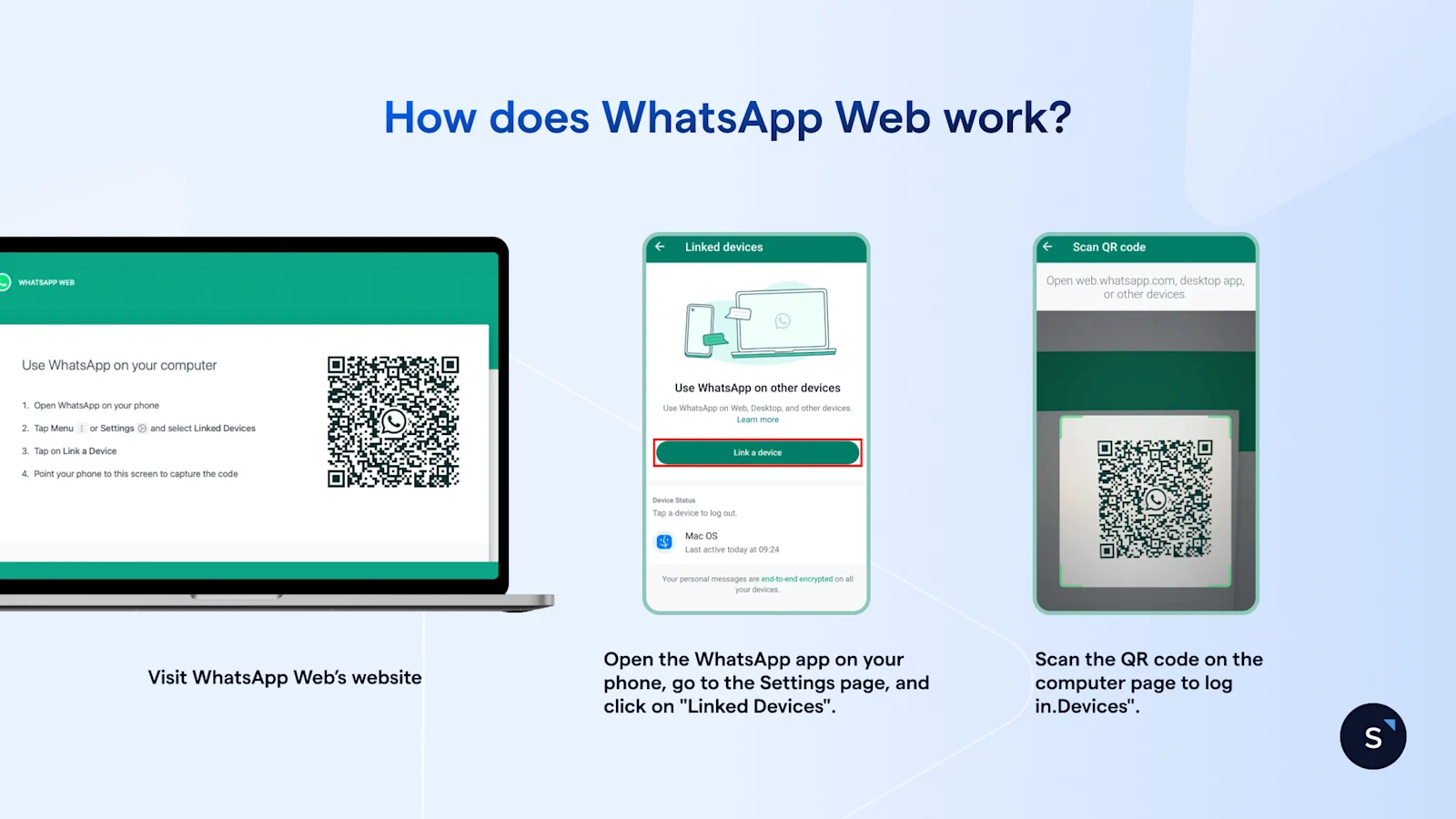
Step 1: Open WhatsApp Web On your computer, open a web browser (like Chrome, Firefox, or Edge) and go to https://web.whatsapp.com/. A QR code will appear on the screen.
Step 2: Link Your Phone On your phone, open WhatsApp.
For Android: Tap the three dots in the top-right corner, then select Linked devices.
For iPhone: Go to Settings and tap Linked Devices.
Step 3: Scan the QR Code Tap Link a device on your phone. Your camera will open. Point your phone’s camera at the QR code on your computer screen. Once scanned, your chats will sync, and you're ready to start using WhatsApp web online.
Pro Tip: For a stable connection, ensure both your computer and phone are connected to the internet.
WhatsApp Desktop
For a more stable and dedicated experience, WhatsApp also has its own desktop app, called WhatsApp Desktop. It’s a standalone application for Windows and macOS, offering similar functionality to WhatsApp Web but without needing a browser.
How to Download and use WhatsApp Desktop: A step-by-step guide
Go to https://www.whatsapp.com/download/ and download the app for your operating system.
Install and open the app. A QR code will appear.
Follow the same steps as WhatsApp Web to link your phone
WhatsApp Web vs. WhatsApp Desktop
If you want to use WhatsApp on your computer, you have two official options: WhatsApp Web and WhatsApp Desktop. Both let you type on a real keyboard and share files from your computer, but they work differently.
WhatsApp Web runs in your browser. You don't need to install anything—just go to the website, scan a QR code with your phone, and your chats will appear. In contrast, WhatsApp Desktop is a standalone application you download and install on your Mac or Windows computer.
To help you figure out which one fits your needs, let's break down their key features.
If you're using a borrowed computer or a strict corporate machine that blocks new software, WhatsApp Web is the way to go. But for your own permanent workstation, the desktop app offers a more powerful and integrated experience.
Keyboard shortcuts that save time
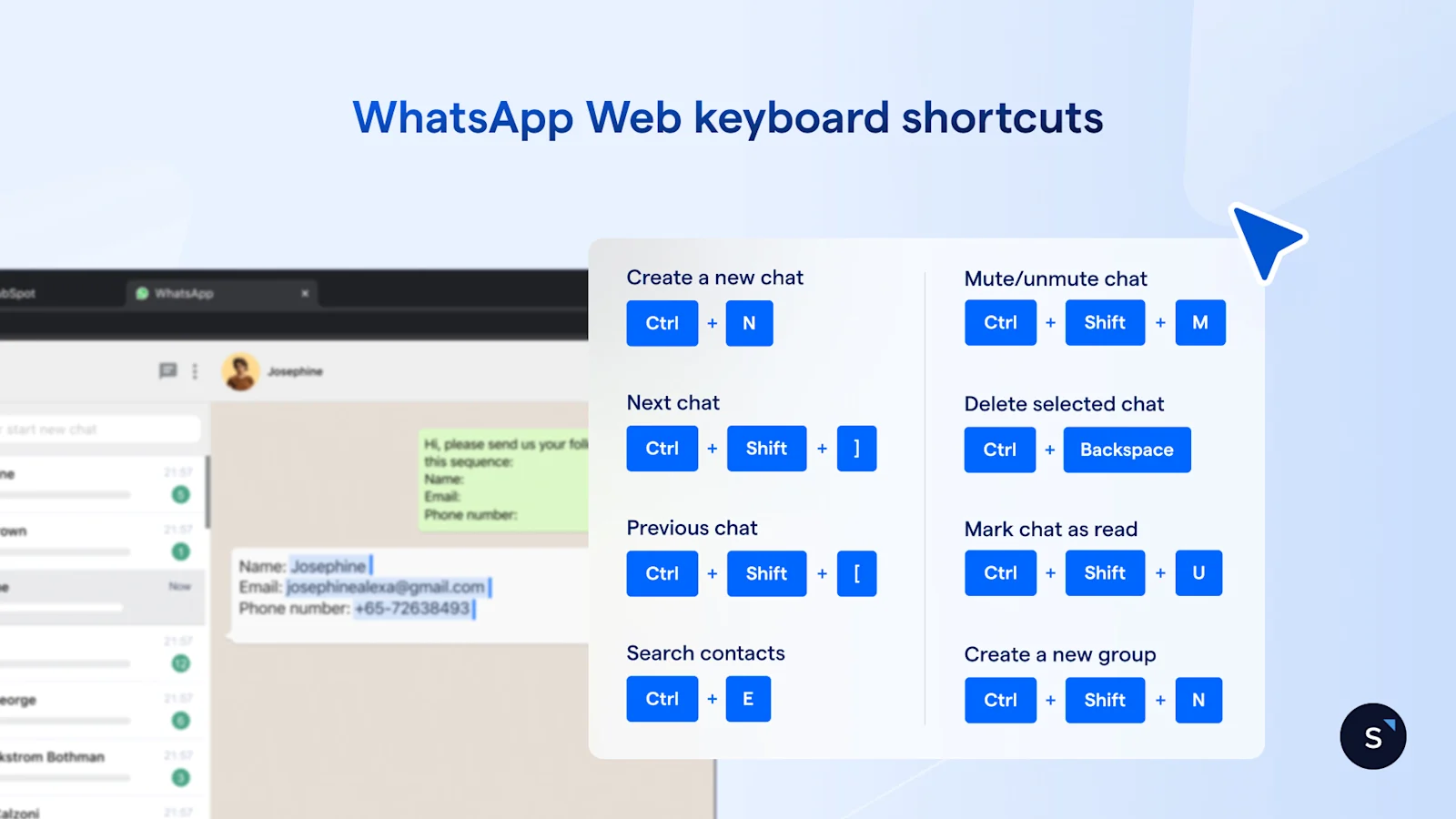
Both WhatsApp Web and the WhatsApp Desktop app offer numerous convenient chat shortcuts that enable you to complete specific actions more quickly. Here are some commonly used keyboard shortcuts:
Ctrl + N: Create a new chat
Ctrl + Shift + ]: Next chat
Ctrl + Shift + [: Previous chat
Ctrl + E: Search contacts
Ctrl + Shift + M: Mute/unmute chat
Ctrl + Backspace: Delete selected chat
Ctrl + Shift + U: Mark chat as read
Ctrl + Shift + N: Create a new group
Common WhatsApp Web and WhatsApp Desktop issues and fixes
WhatsApp Web and Desktop are convenient, but browser-based apps can run into technical issues. You might face a connectivity glitch or a browser compatibility problem that interrupts your chats. Luckily, most of these hurdles are easy to diagnose and fix.
Let's look at some of the most common WhatsApp Web problems and how to solve them.
Limitations of WhatsApp Web for commercial use
While WhatsApp Web is a fantastic free online tool, it has significant limitations for growing businesses.
Limited Multi-Device Access: A standard WhatsApp Business account limits users to one smartphone and four other devices, while a Meta Verified subscription allows for ten. This limitation can be a bottleneck for growing sales and customer service teams, who will need to upgrade to the WhatsApp Business API to access unlimited users and a shared inbox.
Phone Dependency: While you no longer need your phone to be online and nearby to use WhatsApp Web, there's a catch. To keep your account secure, all linked devices will be automatically logged out if you don't use WhatsApp on your primary phone for 14 consecutive days.
Lack of AI and Intelligent Automation: WhatsApp Web lacks proactive AI features such as chatbots, automated replies, and mass broadcasts. Without this intelligent automation, teams must manually handle customer engagement, lead qualification, and targeted outreach, slowing down the sales process and hindering growth.
Risk of Bans: Using personal accounts for high-volume marketing or customer service can violate WhatsApp's terms of service, leading to a permanent account ban.
When WhatsApp Web is enough for a business
As your business grows, it’s easy to get excited about complex, enterprise-grade software. But not every company needs a massive conversational AI platform from the get-go. For many lean operations, the standard WhatsApp Web—ideally paired with a WhatsApp Business account on a phone—is more than enough to handle daily communications.
You can feel confident sticking with WhatsApp Web if your business fits these scenarios:
You are a solopreneur or micro-business: Are you a freelance graphic designer, an independent fitness coach, or a boutique baker handling all customer interactions yourself? A single WhatsApp Web tab is the perfect tool. You don’t need complex multi-agent routing when you're the only agent.
Low-to-moderate message volume: If you only get a handful of inquiries each day, responding within a few hours is perfectly fine. The standard web interface lets you type thoughtful, personalized replies without feeling overwhelmed.
No immediate need for deep CRM iIntegration: Do you manage your clients in a simple spreadsheet or just rely on your memory and chat history? If so, the lack of API integrations (like automatic Salesforce syncing) won't slow you down.
Basic customer service needs: When your client chats mostly involve sending pricing PDFs, confirming appointments, or sharing quick photo updates, WhatsApp Web has you covered. Its file-sharing and the "Quick Replies" feature from the WhatsApp Business app provide all the functionality you need.
While WhatsApp Web is a fantastic free tool for individual use, businesses will quickly outgrow its capabilities. For a powerful, scalable solution that enables your team to communicate effectively, automate tasks, and build customer relationships, you need a platform built for business. SleekFlow provides the robust features you need to transform your communication and turn WhatsApp into a growth engine for your company.
SleekFlow as a WhatsApp Web alternative for businesses
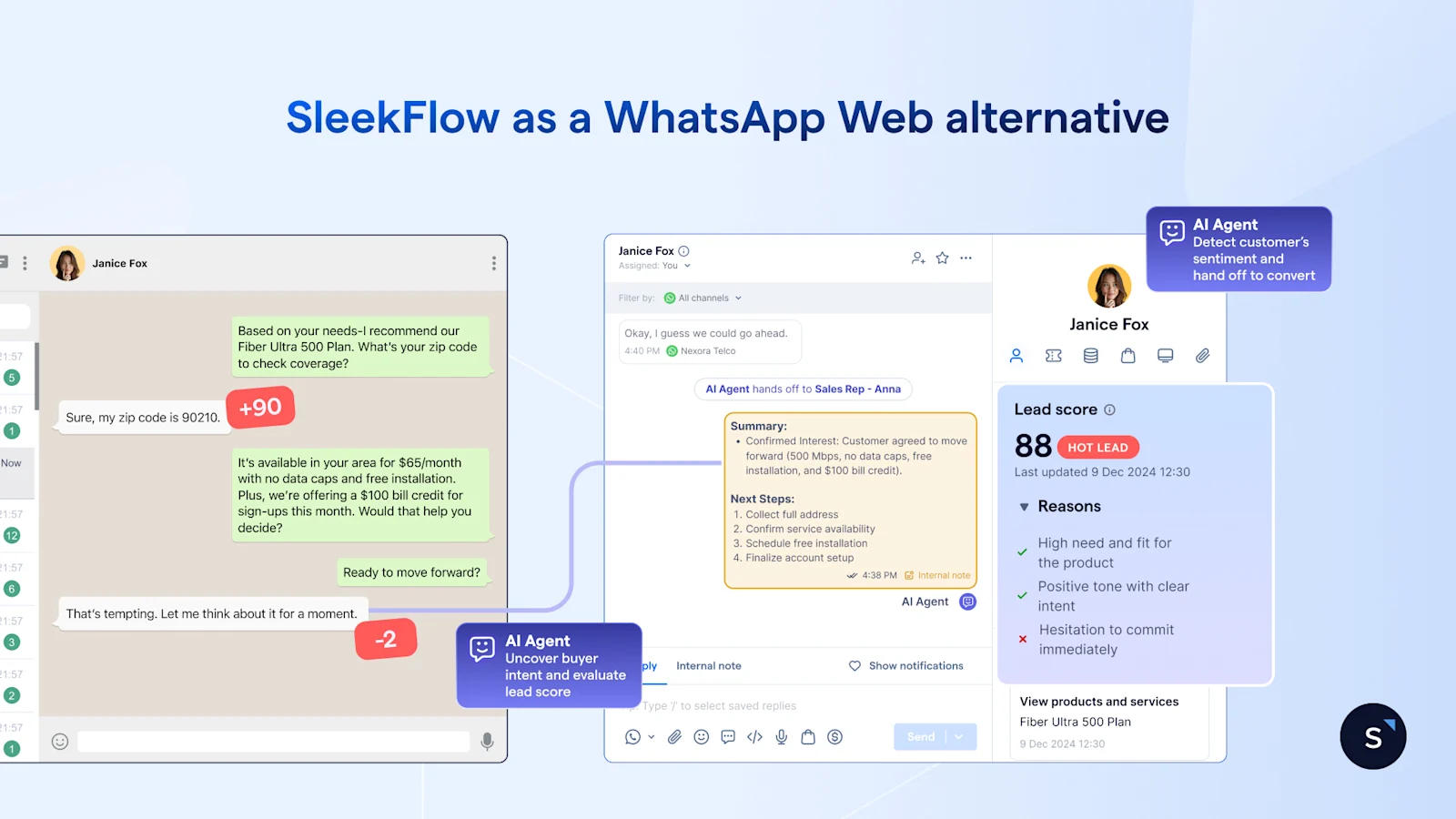
SleekFlow leverages the official WhatsApp Business API to transform your communication, offering features that WhatsApp Web simply does not have.
1. AI-assisted sales journey with AgentFlow
It's time to move past basic, reactive chatbots. With SleekFlow’s AgentFlow, you can create specialized teams of AI agents to proactively manage the entire sales process. Train your AI agents using your company's own knowledge base, and they'll be ready to engage customers 24/7, assess their buying intent, offer personalized product recommendations, and score leads automatically. When a customer needs to speak with a person, the AI hands off the qualified prospect to your sales team. This transition is seamless, providing a concise chat summary and AI-generated response suggestions to help your team convert leads quickly and efficiently.
2. Smarter segmentation and lifecycle broadcasts
Work smarter, not harder. Instead of manually labeling chats, SleekFlow automatically segments customers for you using smart lifecycle stages based on their intent, behavior, and past interactions. This allows you to send highly targeted WhatsApp broadcast campaigns that reach the right people at the right time. It's a shift from basic message blasts to continuous, personalized engagement that guides customers through their buying journey.
3. Comprehensive analytics
Gain complete visibility into your chat performance with SleekFlow's powerful analytics dashboards. Unlike basic metrics, SleekFlow offers two distinct dashboards to provide a comprehensive view of your customer journey. The Conversation Analytics dashboard offers insights into your team's performance, including key metrics such as response times, conversation volumes, and agent efficiency, helping you identify bottlenecks and optimise your communication workflows. The Conversion Analytics dashboard, on the other hand, is focused on revenue. It allows you to track and analyse user behaviour and monitor conversion events, giving you a clear view of how chats are turning into sales. You can identify drop-off points and measure the effectiveness of your engagement strategies.
4. Secure access with role-based control
Security is paramount. In addition to enterprise-grade security certifications such as SOC2 and GDPR, SleekFlow offers role-based access control (RBAC), enabling you to manage permissions with precision. You can grant or restrict access to specific conversations, contacts, and features, ensuring that each team member, from a sales agent to a customer support manager, only sees and interacts with the data relevant to their role. This adds a crucial layer of security, protecting sensitive customer information and streamlining workflows.
5. Seamless integration with your tech stack
Your data shouldn't be siloed. SleekFlow integrates with your existing technology stack, including popular platforms like HubSpot, Salesforce, and Shopify. This allows you to automatically sync customer data, track activities, and trigger automated workflows between systems. By connecting your CRM, e-commerce, and other tools, you gain a unified view of your customers, enabling you to deliver more personalised and effective communications.
While WhatsApp Web is an excellent, free tool for getting started, it serves as a simple entry point– a bicycle in a world of high-performance vehicles. For a business to truly scale, it needs more than just a place to chat. The real value lies in converting conversations into customers, building a secure and visible pipeline, and empowering your team with the tools to succeed.
Moving beyond WhatsApp Web is a strategic move from manual, reactive workflows to proactive, AI-driven sales. Instead of manually reading chat histories to categorize leads, you can empower specialized AI agents to qualify prospects, recommend products, and guide them toward a purchase. A platform like SleekFlow transforms your communication from a basic messaging tool into an intelligent, automated engine that drives conversions and significant business growth.
Case Studies: Why Leading Companies Upgrade From WhatsApp Web
1. How JomCharge boosted response speed by upgrading from WhatsApp Web to SleekFlow
JomCharge, a leading electric vehicle (EV) charging provider in Malaysia with over 1,000 charging points and 60,000 users, needed to provide immediate support to drivers experiencing technical issues on the road.
As their user base grew, the customer experience team faced significant challenges with their traditional communication methods. Voice calls were inefficient, emails were too slow for urgent issues, and WhatsApp Web was severely limited, allowing only four agents to log in at once. This created a bottleneck, leading to long wait times and unattended conversations as inquiry volumes surpassed 1,200 per month.
JomCharge upgraded to SleekFlow’s omnichannel platform to modernize its support system. This provided them with unlimited multi-agent access to WhatsApp through a unified inbox, allowing the support team to scale effectively. They also implemented automated workflows to instantly acknowledge queries, pre-fill chats with essential technical data from QR code scans, and automatically send customer satisfaction surveys after a conversation.
The strategic shift to SleekFlow delivered transformative outcomes for JomCharge. By overcoming previous limitations and leveraging intelligent automation, they achieved:
A 95% improvement in response time.
A 2x increase in overall customer satisfaction.
SleekFlow is definitely value for money. It meets all our expectations, offering a reliable, user-friendly system with essential features expected from a communication platform to serve our organization.

Edward Toh
Senior Customer Experience Manager, JomCharge
2. Elétron Seguros Automated WhatsApp Support with AgentFlow While Maintaining a Human Touch
Elétron Seguros, a fast-growing Brazilian insurtech company, used WhatsApp as its main customer support channel. With over 7,500 registered companies on their platform and a shift to a remote workforce, scaling their support became a significant operational challenge.
The company's reliance on unofficial WhatsApp tools led to system instability and a lack of oversight for managers. To handle the high volume of inquiries, human agents used repetitive canned responses, which made customer interactions feel robotic and impersonal.
Elétron Seguros adopted SleekFlow’s official WhatsApp API and implemented AgentFlow. They created a custom AI agent named "Aurora" to handle initial inquiries 24/7. For complex issues or when a customer requested human interaction, the system seamlessly transferred the chat to a human agent, providing them with the full conversation context.
This new structure empowered the human workforce and delivered impressive outcomes.
80% of conversations were successfully resolved by the AI agent.
Only 20% of chats needed to be transferred to human staff for complex issues.
The company maintained rapid growth and operational stability without needing new hires.
AI allowed the human team to focus on high-value, relationship-building interactions.
Today, around 80% of conversations are handled by AI, and only 20% are transferred to the team — in a much more organized way.

Mauro Filho
Founder & CEO, Elétron Seguros
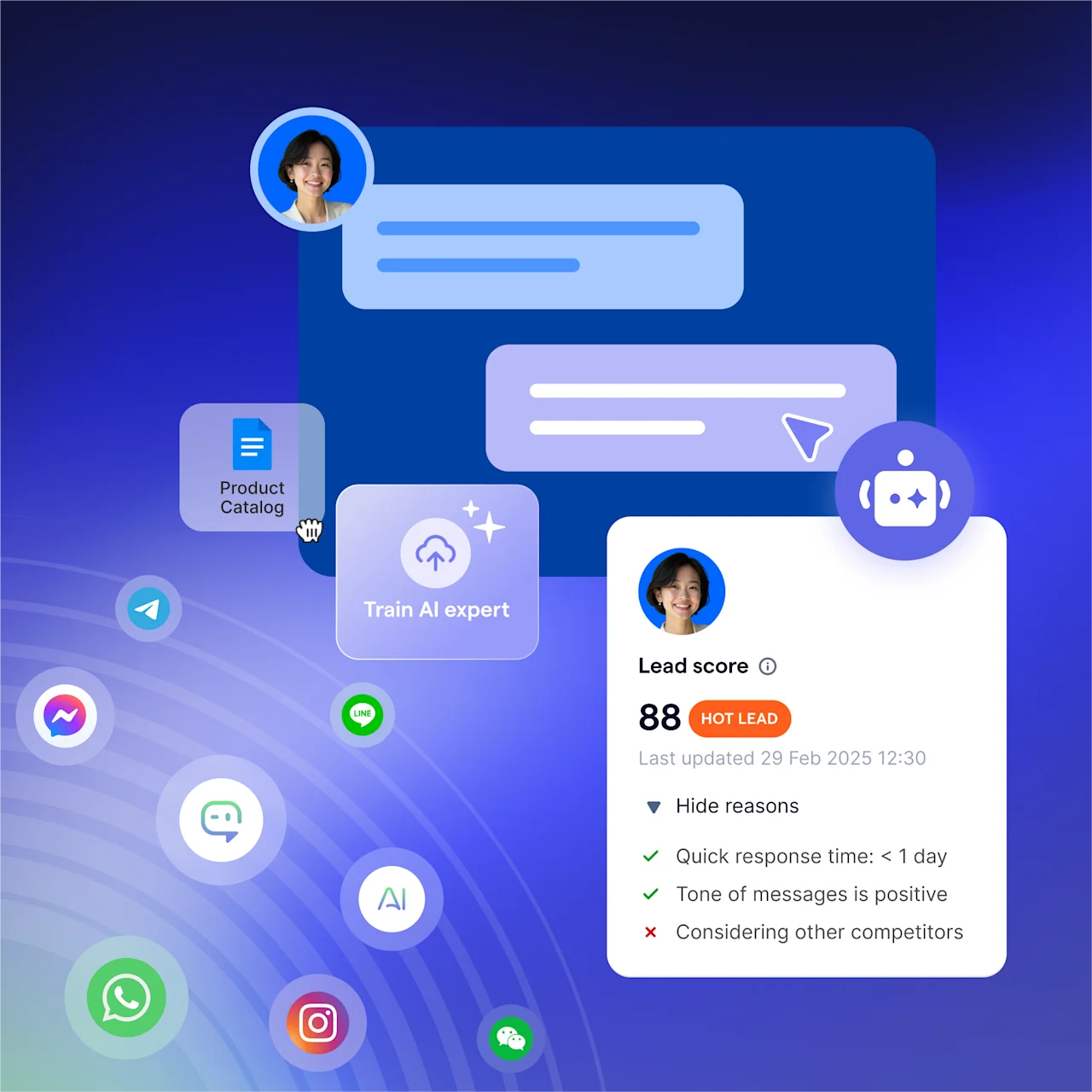
Start for free!
Grow your revenue and turn chats into conversions with AI agents. Try SleekFlow for free, forever.


