How to Use WhatsApp Business with Multiple Users: The Complete Guide


TL;DR: Quick Summary
- WhatsApp Business app (free): best for small teams — 1 phone + up to 4 linked devices.
- Meta Verified on WhatsApp: links up to 10 devices and adds a verified badge (availability/pricing vary).
- Still app-based: the free app + Meta Verified are mainly about device access, not advanced automation or integrations.
- WhatsApp API (Platform): built for true multi-agent workflows (routing, roles, integrations, chatbots/automation via providers).
- API costs + rules: WhatsApp charges per delivered message, and outbound re-engagement typically requires approved templates outside the 24-hour window.
WhatsApp stands out for its user-friendly interface, multimedia sharing, and ad-free experience. With the functions tailor-made for different types of users from both small and large businesses, almost everybody is fascinated with this revolutionary messaging platform.
Still, some might find it hard to manage due to certain capacity and message limits. Simply put, since WhatsApp applies an authentication system that uniquely connects it to one phone number, it is challenging to access the WhatsApp account on multiple devices at the same time.
This is exceptionally challenging for medium and large businesses. With thousands of inbound messages and countless users, how can they keep track of all communications with only one device?
For businesses that use WhatsApp links to make it even easier for customers to contact them, leading to a surge in conversations. Such businesses may then choose to use a WhatsApp Manager to better manage conversations!
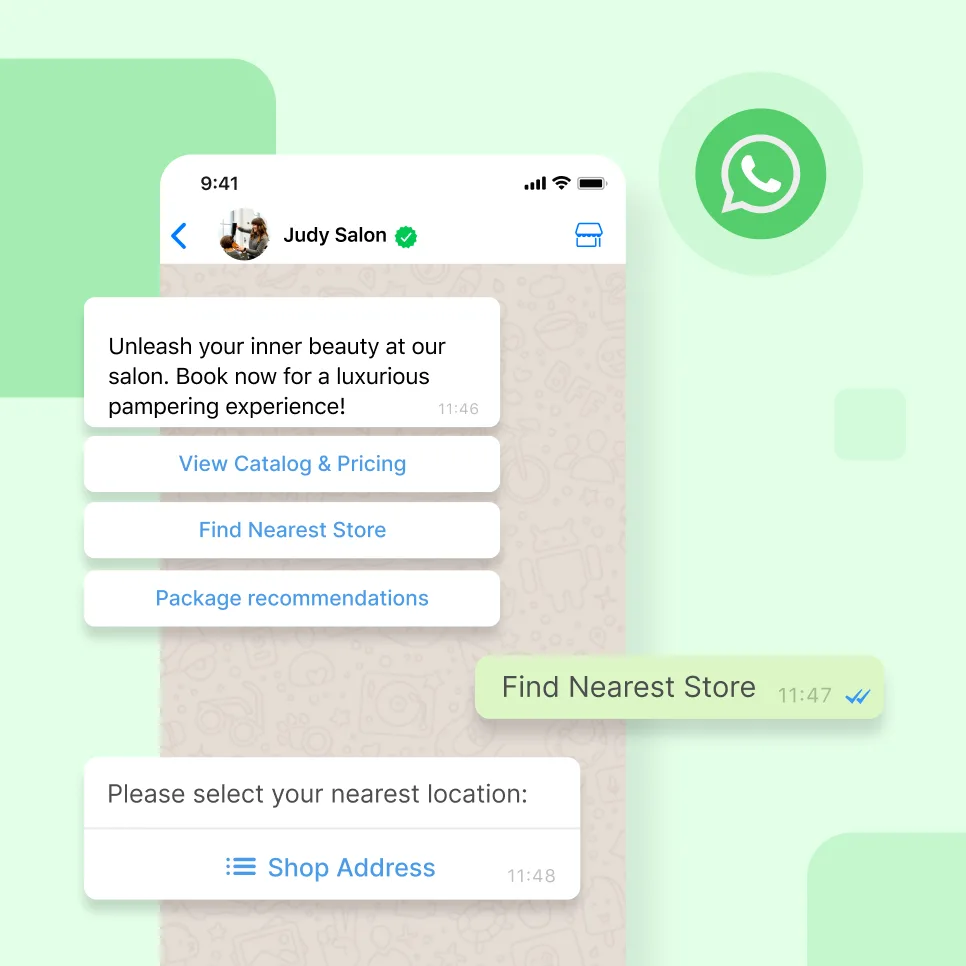
Connect to WhatsApp Business API now!
Connect to WhatsApp Business API and unlock powerful tools to engage your audience.
WhatsApp Business App: multiple users vs. linked devices
Can Multiple Users Use the Same WhatsApp Business Account?
🔹 Yes, but with limitations. WhatsApp Business App allows login on:
📱 Mobile Phones
💻 Tablets & Laptops (via WhatsApp Web)
However, for larger teams:
❌ Only 4 additional devices can be linked (max 5 users total)
❌ Tablets are supported via WhatsApp Web, but not as standalone devices
➡️ Need access for more than 5 users? It’s time to explore WhatsApp Business API.
Seems like a familiar issue? It's time that you explore another solution - WhatsApp Business API.
Check out our WhatsApp Business API Guide to learn how to set up multiple users for your team.
WhatsApp Business Premium or Meta verified: account with multiple users
If your team has outgrown the free WhatsApp Business app’s device limit, some businesses can increase access by subscribing to WhatsApp Business Premium and/or Meta Verified (availability and benefits can vary by region and business eligibility). Meta Verified for WhatsApp includes the ability to link up to 10 devices, so more teammates can reply from their own screens without sharing a single computer.
To connect additional devices, you can link WhatsApp Business on web, desktop, or tablet using a QR code (and in some cases, link using your phone number instead of scanning).
Limitations to be aware of (why some teams still move to the API):
You still operate around a primary phone + linked devices model (this isn’t the same as a full multi-agent platform with routing, permissions, and CRM automation).
Some features aren’t supported on linked devices, including creating/viewing broadcast lists (and other linked-device feature gaps).
Automation remains limited compared to WhatsApp Business Platform (API)—if you need chatbots, CRM integrations, advanced routing, analytics, or governance, the API + shared inbox is typically the next step.
Read more: How Singtel leverages WhatsApp Business to drive Customer Experience 3.0
WhatsApp Business API and shared team inbox: what it is and how it works?
A WhatsApp Business shared inbox is a great solution for small businesses that need a multi-user login. But for enterprises or mid-sized businesses that require a quick way to reply to a large volume of customers and engage with them, as well as making them engage with your brand, a more efficient solution is needed.
And this solution is a WhatsApp Business API!
What is WhatsApp Business API?
✅ What is WhatsApp Business API?
💡 WhatsApp Business Platform (API) is the official way to run WhatsApp at scale with multi-agent workflows, typically through a shared inbox provider. With a WhatsApp API provider like SleekFlow, you can:
👥 Connect unlimited users to a single WhatsApp account
🔄 Manage conversations seamlessly across multiple devices
🤖 Automate responses with chatbots & CRM integrations
Unlike other versions of WhatsApp, the API is designed for medium and large companies that need their entire team connected to the WhatsApp account, and offers a real solution for WhatsApp Business with multiple users and devices.
Automate sales with AI agents
By connecting the WhatsApp Business API to an omnichannel AI platform, you can turn your Customer Relationship Management (CRM) into a revenue-generating machine. This setup cuts down on manual work, boosting your team's productivity and conversion rates.
Integrating WhatsApp with SleekFlow's AI gives you access to AgentFlow.
Instead of your team just sharing an inbox, you can use specialized AI agents that are trained on your company's knowledge. These agents can proactively guide sales conversations, capture leads, and answer questions 24/7—all without needing a human to step in.
Automate Lead Management
Moreover, if a potential customer texts you for the first time, a lead card will be created and saved to the system.
Once a lead already has an assigned responsible service agent, he or she will be the only one to be notified. Thus, the rest of the team won’t get distracted.
In short, the WhatsApp Business API can greatly enhance workflow efficiency by allowing integrations with your own systems, helping the team unleash the full potential of WhatsApp as a channel for communication with customers.
Unify inbound channels
SleekFlow combines all channels in one user interface where users can send and receive messages across all messaging channels – including but not limited to, WhatsApp, SMS, Facebook Messenger, Instagram, WeChat, Telegram, Line, and more.
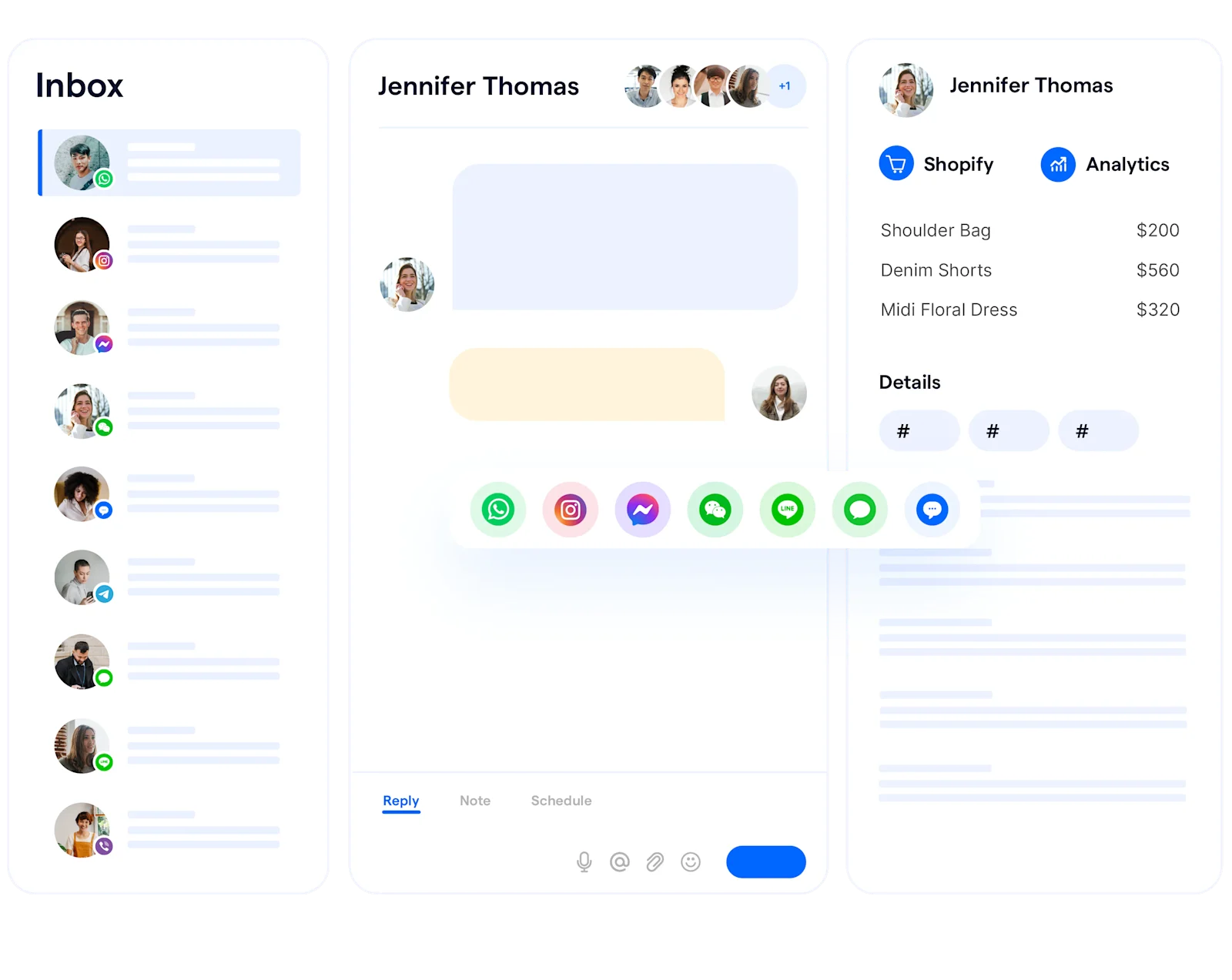
BateriHub centralized customer touchpoints into one unified inbox
BateriHub was a rapidly growing business handling a high volume of customer communications.
Their customer communication system was fragmented and disorganized. The team relied on individual WhatsApp accounts, and inquiries came from various sources like website widgets, direct searches, and social media ads. This made it difficult to manage interactions smoothly and track lead sources effectively.
BateriHub adopted an omnichannel solution to consolidate all their scattered communication channels—including website chat, digital ad entry points, and social messaging—into a single, unified inbox.
Consolidated all customer entry points, ensuring no lead was missed and boosting response speed by 17x.
Eliminated app fatigue for agents and reduced spam leads to less than 1% by integrating all messaging platforms into one interface.
Boosted conversions by 22% by managing all conversations in one organized space, providing a professional and reliable experience for every customer.
Almost 100% of our customers contact us via WhatsApp, the rest of them will contact us via Instagram and Facebook. With the help of SleekFlow, we can handle all the conversations from different social media and hand over some inquiries between colleagues well.
Cheuk Ying
SleekFlow client / Beauty Salon Weirdo Beauty founder
Enable multi-staff access
Besides having an all-in-one inbox, a multi-staff access feature is also available for improving operational performance.
With SleekFlow, you can quickly and easily add users to your platform and organize them into teams.
WhatsApp Business multiple user with same number account, will not create confusion to your clients.
Route conversations to the right agent
When a new conversation comes in from a new customer, it will be set as unassigned. As soon as one of the teammates replies, he or she will automatically take the conversation. Any new notifications from such conversation will therefore only be visible to that person. In the following tab, members can see all the conversations assigned to them.
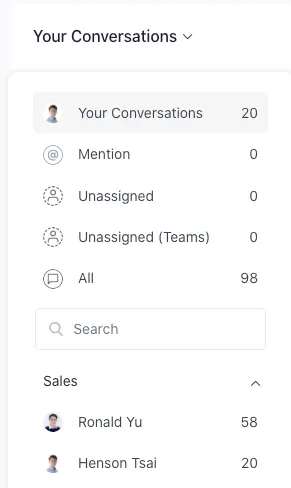
These advanced features enhance collaboration across teams and help drive sales automatically. AgentFlow allows you to segment customers based on their lifecycle stage, so you can send highly targeted broadcast campaigns at just the right time.
Let specialized AI agents score and qualify leads based on intent, freeing up your team to concentrate on closing high-value deals. AgentFlow ensures a smooth handoff by routing prioritized prospects to your human reps instantly, complete with concise chat summaries and actionable AI insights.
AI-Powered social commerce
On top of improving operational efficiency, SleekFlow's features can also supercharge your sales pipeline. The platform can analyze conversational intent to recommend personalized products and send hyper-targeted broadcasts based on where customers are in their lifecycle.
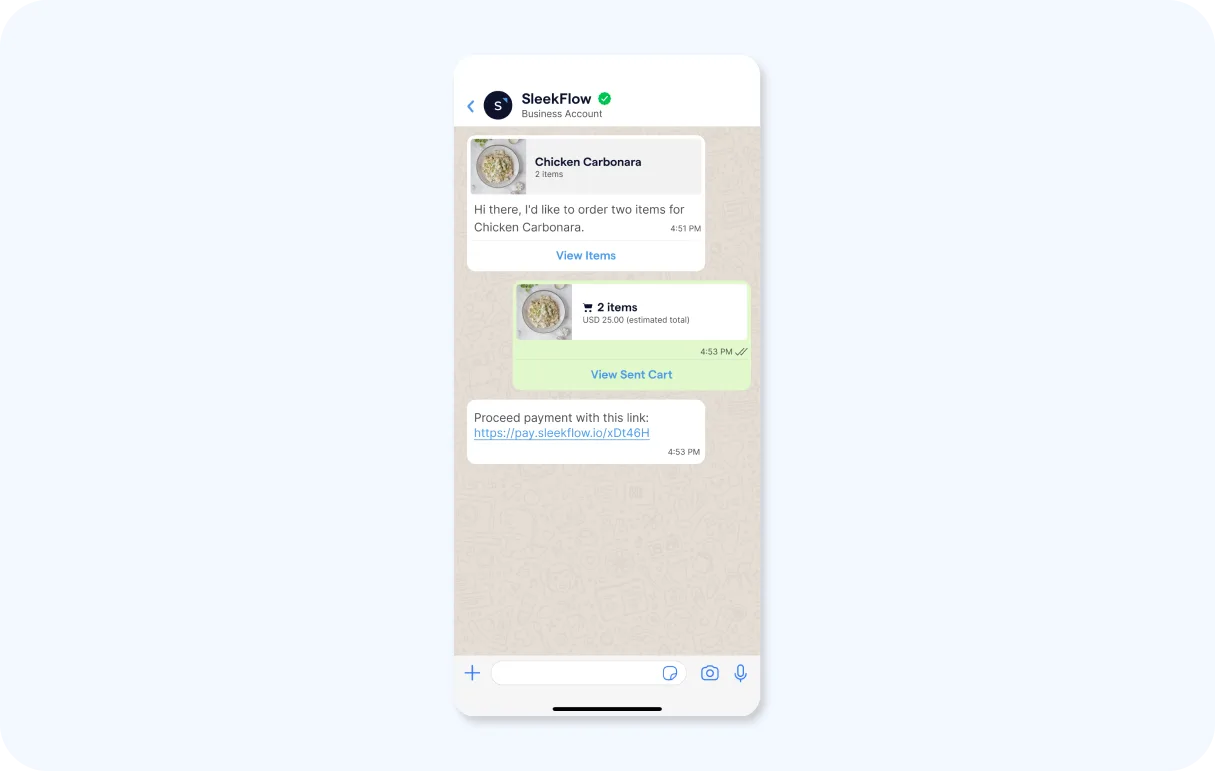
This creates a complete social commerce strategy where consumers can enjoy a smooth buying journey. You can generate in-chat payment links so customers can check out instantly without leaving WhatsApp. All the while, the Inbox Co-Pilot helps your human agents craft tone-perfect follow-ups with a single click.

Calculate your WhatsApp Business messaging costs
WhatsApp Business API charges vary depending on the message template category. Estimate your monthly charges now!
How to choose your WhatsApp Business setup for multiple users
Picking the right WhatsApp solution is essential if you want to keep your business communication smooth, professional, and ready to grow alongside your needs. Take a look at the comparison table below, then dive into the in-depth guidance to help you choose the setup that fits your business best.
Not quite sure which solution is the best fit? This guide is here to walk you through the options and help you match the right WhatsApp setup to your unique business needs.
Are you a solopreneur or leading a small team (fewer than five people) and receive only a handful of customer messages each day? Start with the WhatsApp Business App. It’s free, simple to set up, and lets you connect up to four devices to one number. You get an easy way to manage customer chats—no complicated features required.
Need a step up from the basic app but not quite ready to dive into the technicalities of the API? If you qualify, WhatsApp Business Premium could be the answer. This subscription service lets you link up to ten devices and unlocks extra features, including a verified badge to boost your brand’s credibility. It’s a great fit for businesses that want to look more professional and give more team members access.
Is your team growing, and do you need robust tools and collaboration features? Look into the WhatsApp Business Platform (API) with a shared inbox. This setup is built for medium to large businesses that handle a high volume of customer interactions. You’ll benefit from unlimited user access, advanced automation like chatbots and CRM connections, and the flexible infrastructure to scale with your needs.
Multiple users for WhatsApp Business: team or user management on SleekFlow
Before you start
Before setting up the WhatsApp Business Platform, run through this quick checklist to make sure everything goes smoothly:
Will you use a new number or migrate an existing one? Decide if you'll start fresh with a new number or move over one you already use.
Do you have a Meta Business Portfolio? You'll need to have your business officially registered and verified with Meta to get started. This step is crucial for confirming your business's legitimacy.
Who on your team will own verification and billing? Designate a team member to manage the verification process and handle all billing responsibilities.
What systems does WhatsApp need to integrate with? List the essential platforms you rely on, like your CRM, Shopify store, or customer support systems. Pinpointing these early ensures a smooth integration and a unified workflow.
How to set up multiple users for WhatsApp Business on SleekFlow? Here’s a step-by-step guide.
Team management
First of all, you can view all your teams, members, and team admins under the “Team Management” tab by accessing the “Settings” button on the top right.

If you want to create a new team, click on the “Add Team” button on the top right-hand corner of the screen.
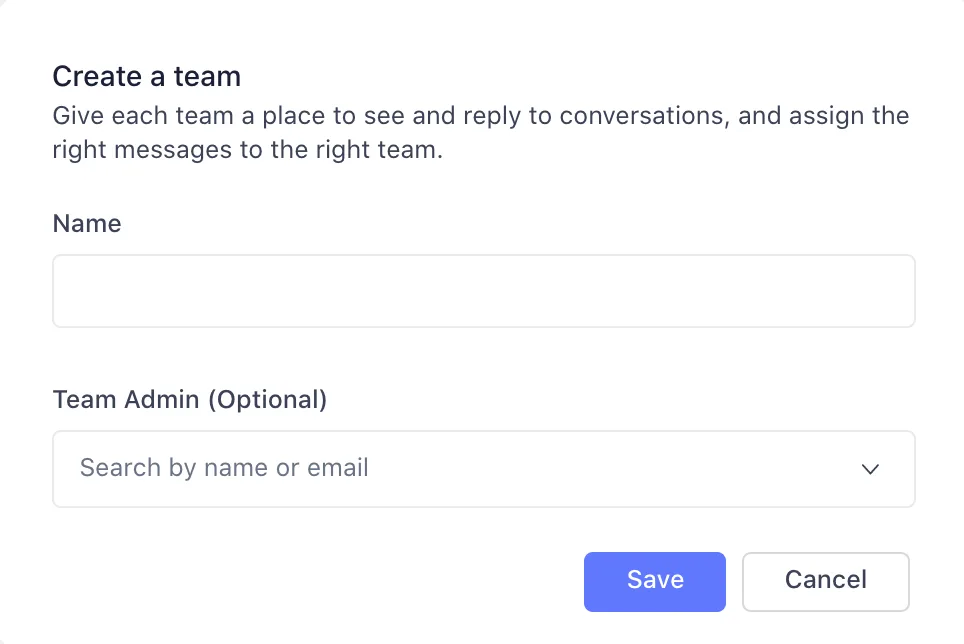
A popup to create a team will appear. Give the team a name and choose a team admin to create a new team. After pressing “Save”, the team will be created.
You can add members to your team by pressing the white “Edit” button while hovering over the teams.
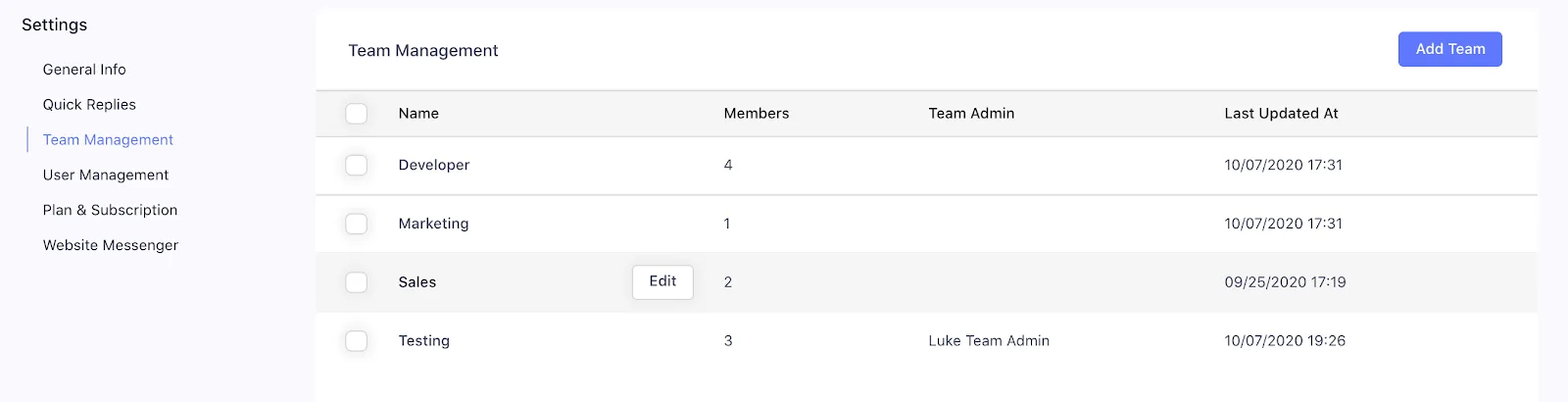
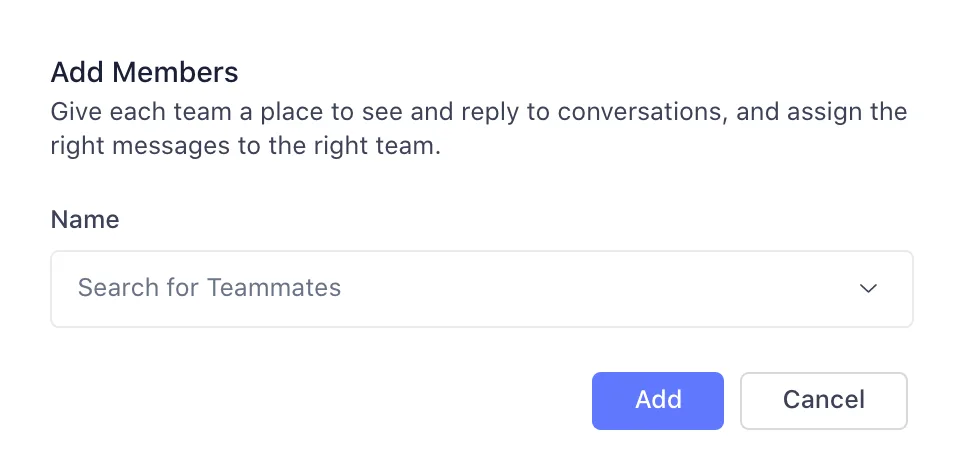
You can add members by pressing the “Add Member” button on the top right.

You can edit the group details by pressing the “Edit” button next to the “Add Member” button.
Select the teammates in the dropdown to add them to the team.
The collaborator function
SleekFlow's collaborator function allows team members to co-own the conversation. As long as you are the collaborator, you will receive a notification whenever the customer sends you a message. This reduces the chance of overlooking any messages.
How AfterSchool used collaboration to let teachers and tutors co-own conversations
AfterSchool is a rapidly growing online tutoring platform that manages communication between tens of thousands of students and over 50 tutors.
Their previous system relied on single-user mobile devices, which created a logistical bottleneck. Only one person could respond to student inquiries at a time, preventing teaching assistants (TAs) from assisting tutors and leading to slow response times.
AfterSchool adopted SleekFlow to create a collaborative environment. The platform allows for multi-user access to a shared inbox, automated routing of conversations to specific subject teams, and internal notes for private collaboration between tutors and TAs.
This new system revolutionized their student support, leading to several key improvements:
Significantly reduced response times by 17%.
Empowered the entire team to collaborate seamlessly on student inquiries, resulting in a 30% decrease in manpower needed.
Improved quality control, as tutors could easily review TA responses.
Elevated the overall student experience with faster, more unified support.
User management

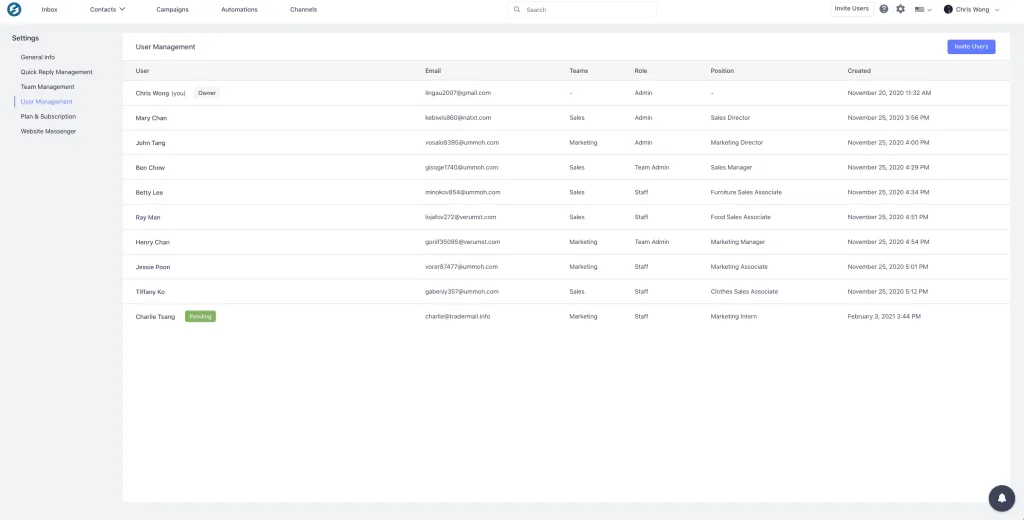
View all your team members, along with their basic information and roles under the “User Management” tab by accessing the "Settings" button on the top right.
To invite a new user, click on the white “+ Invite User” button on the top right-hand corner of the screen.
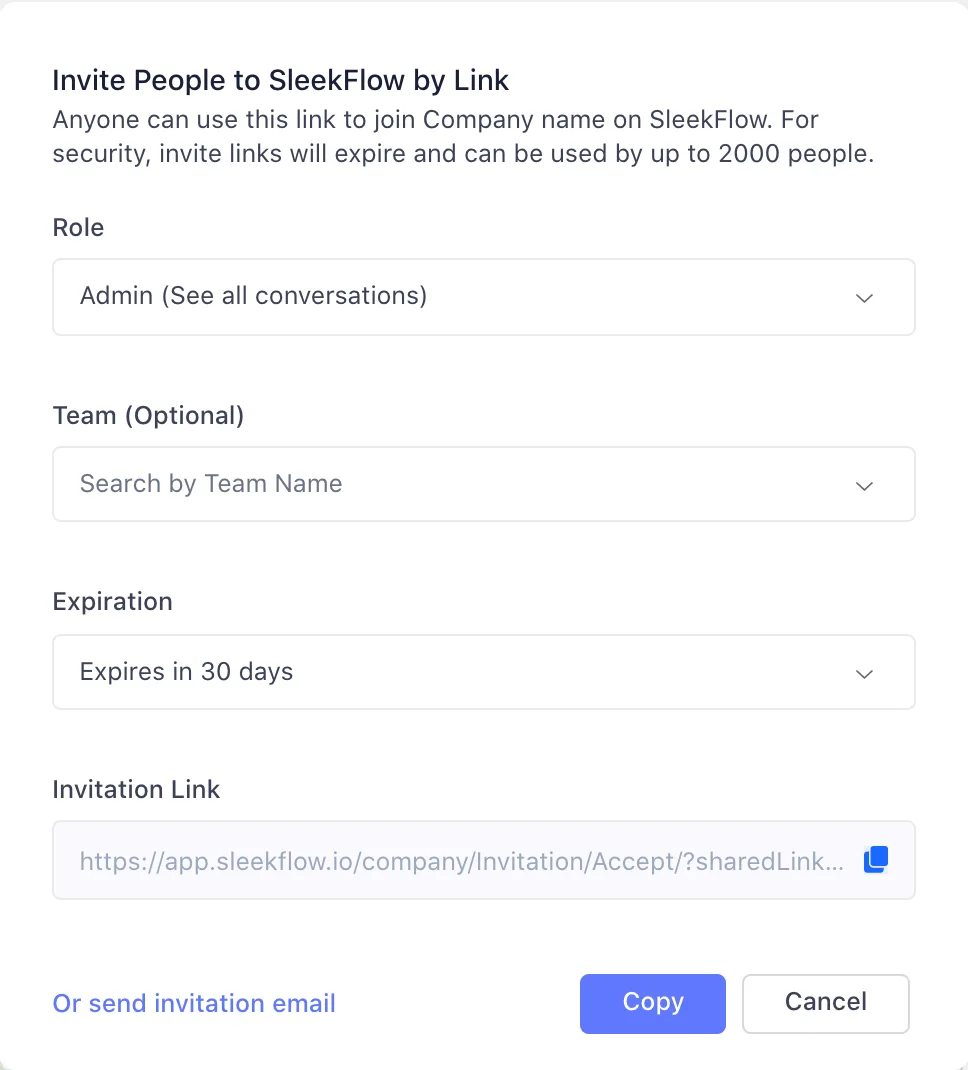
A popup to invite users will appear. Choose the correct role, select the expiration date and press the “Copy” button and paste the link for your team to register their accounts.
You can also press the bottom left of the pop-up to directly send an invitation email.
Once all fields have been filled in, click on the blue “Send Invitations” button at the bottom of the popup.
The new team member will be added to the list of users with a “Pending” tag. The “Pending” tag indicates that the team member has not accepted the invite and created an account on SleekFlow.
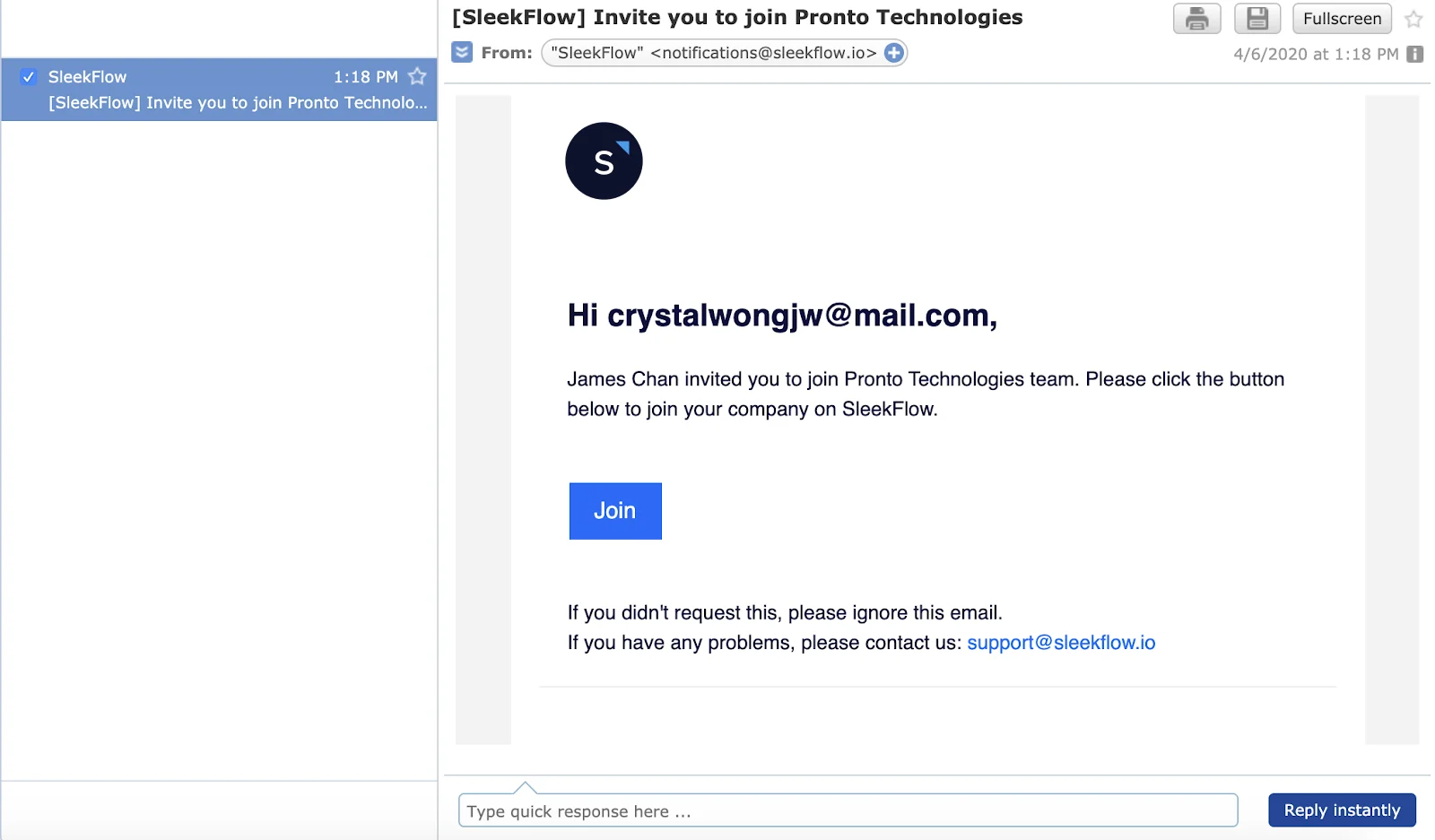
An email invite will be sent to the respective team members’ email inboxes. The invited team member should check both the email and junk or spam folders for the email invitation to join the team on SleekFlow. To join the team, simply click on the blue “Join” button in the email.
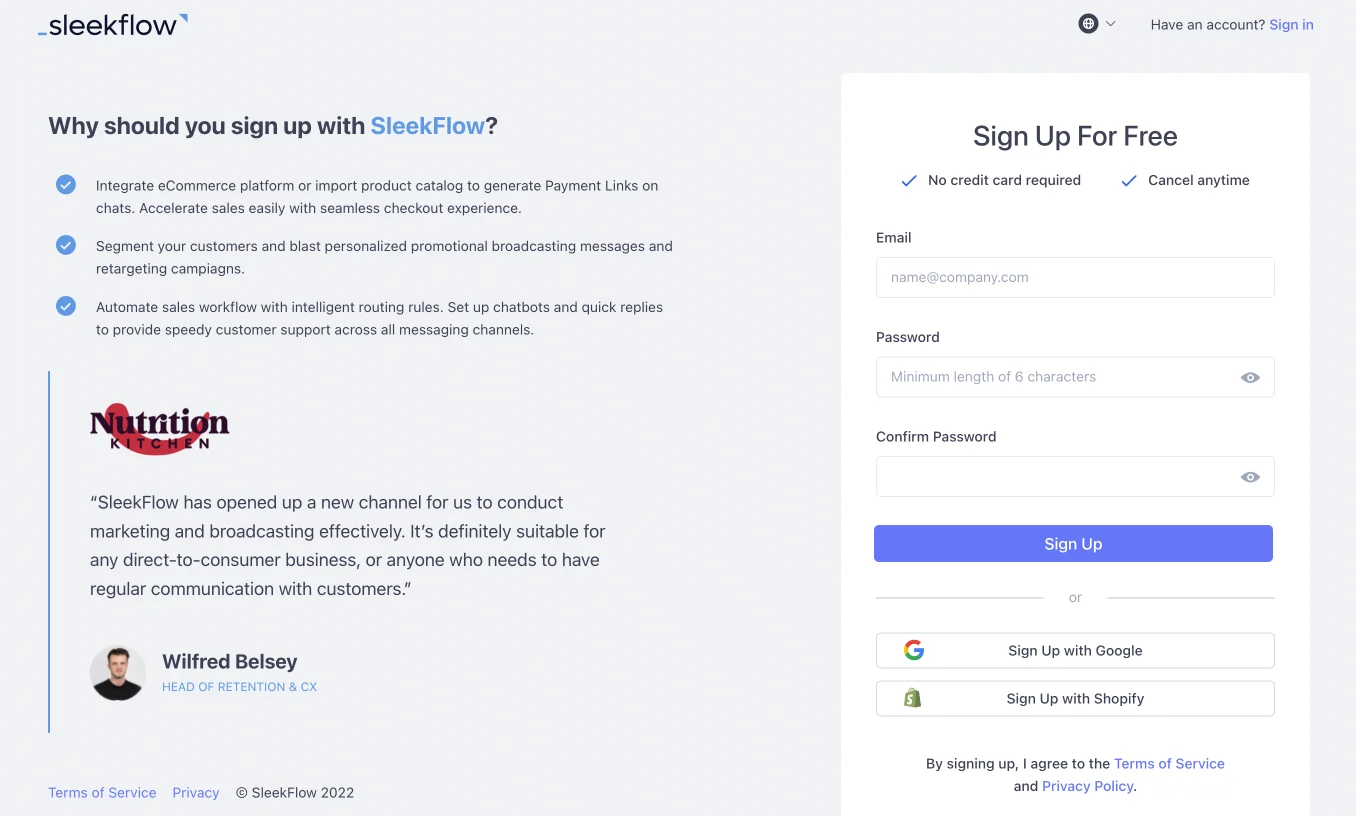
The new team member will be redirected to SleekFlow and will have to create a SleekFlow account in order to be added to the team. Fill in all the basic information and then click on the blue “Join SleekFlow” button at the bottom.
Once that is done, the new team member will be added to your list of users.
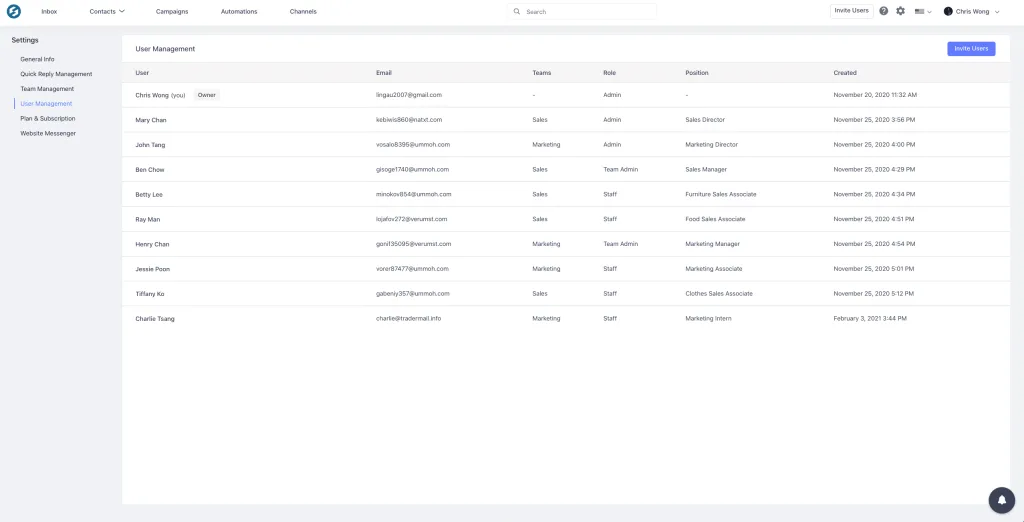
To edit a team member’s role and basic information, hover over the team member’s name and click on the “Edit” button.
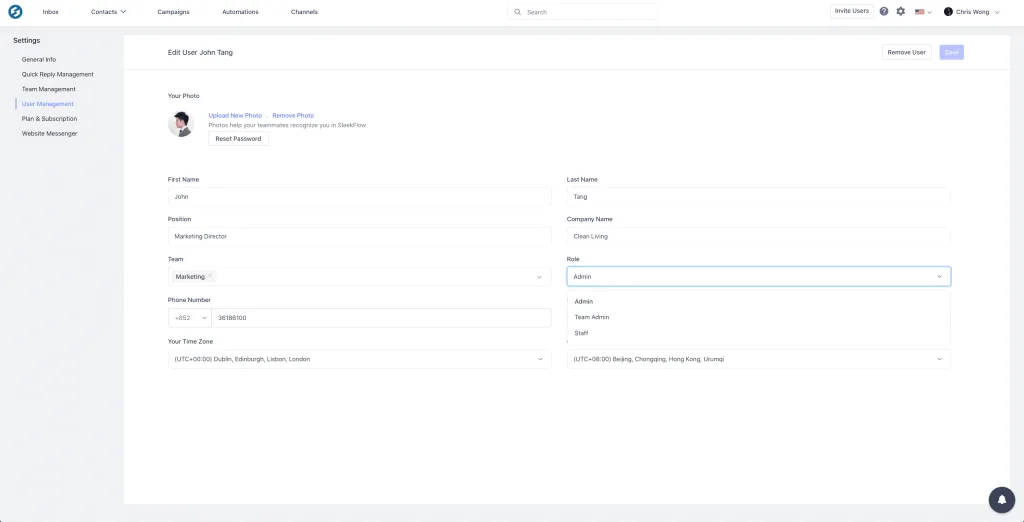
Make changes such as editing the team member’s profile picture, basic contact information, phone number, time zone, teams, and user roles.
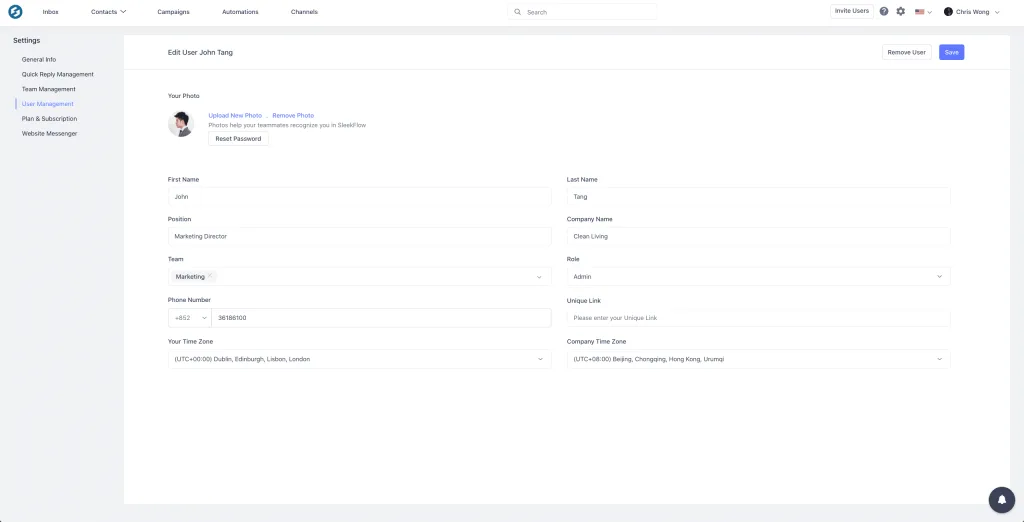
Once all edits have been completed, click on the blue “Save” button on the top right-hand corner of the screen.
Managing WhatsApp multi-agent in SleekFlow
Now that you have your team set up, it's time to manage them. With the right strategies in place, you can streamline your customer communications and deliver outstanding support. We'll show you how to use SleekFlow’s features to set clear permissions, establish standard operating procedures (SOPs), and more. Let's get started.
Intelligent Routing
Say goodbye to manually sorting chats. With a multi-agent setup, you can use automation to instantly distribute incoming messages.
Set up AI agents to ask qualifying questions, like "Are you looking for Sales or Support?", and then automatically route the customer to the right department.
You can also distribute conversations based on:
Language preferences
Business hours
A round-robin system, which shares the workload equally among active agents
Roles and Access Control
Managing your team effectively means more than just adding new users. It's about deciding what each person can see and do on the platform. Clear boundaries improve both security and efficiency. SleekFlow's permissions system gives you the control you need to run your organization smoothly.
Admin: Has full visibility and control over the platform. Admins can access all settings, manage billing, create teams, and oversee every conversation and user in the organization. This role works best for business owners or department heads who need a complete overview.
Team Admin: Manages a specific team. Team Admins add or remove members from their team, view all of their team's conversations, and assign chats to team members. This role is perfect for managers overseeing a function like sales or support.
Staff: This role is for the frontline of your communications. Staff members can only see and manage conversations assigned to them or those where they are added as a collaborator. This keeps them focused on their own customer interactions without unnecessary distractions.
SOP for teams
To get the most out of your shared inbox, it's important to set up clear standard operating procedures (SOPs). These guidelines will standardize your communication and help you maintain high-quality customer support.
Tagging: Use tags to categorize conversations with labels like new-lead, support-issue, or billing-question. This keeps your chats organized and reveals insights into customer trends.
Collaboration: Use the Collaborator function to get help from a colleague without giving up ownership of the conversation. Both you and the collaborator will receive notifications, ensuring prompt replies.
Escalation: Create a clear path for escalating difficult issues. For example, a Staff member can reassign a tricky technical question to a Team Admin or a senior support specialist.
Response SLAs: Set clear service-level agreements (SLAs) for response times. You can use SleekFlow's analytics to monitor your team's performance and make sure customers aren't left waiting.
Want to outcompete your peers with SleekFlow's help?
Book your personalised demo with SleekFlow today and unlock the potential of seamless communication


