How to add a WhatsApp chat button to your website


TL; DR: Quick Summary
- A WhatsApp chat button is a floating widget that lets website visitors start a conversation with your business instantly, reducing friction compared with traditional contact forms.
- You can add a WhatsApp chat button to your website by generating a unique snippet code in SleekFlow and installing it through HTML, Google Tag Manager, or WordPress.
- Businesses use WhatsApp chat buttons to capture more inbound enquiries, respond faster, and continue conversations after visitors leave the website.
- For more advanced use cases, a WhatsApp widget can also support features like pre-filled messages, routing, branding, and automation to improve the customer experience.
A WhatsApp chat button lets website visitors start a conversation with your business in just a few clicks. Instead of filling in a form and waiting for a reply, they can message your team directly through WhatsApp from the page they are already browsing.
For businesses, that means fewer drop-offs, faster lead response, and a more convenient path from inquiry to conversion.
In this guide, you’ll learn:
the difference between a WhatsApp link, button, and widget
how to add a WhatsApp chat button to your website
how to install it on HTML, Google Tag Manager, and WordPress
best practices to improve conversions after setup
WhatsApp link vs button vs widget
Before setup, it helps to choose the right format.
WhatsApp link
A WhatsApp link is the simplest option. It opens a WhatsApp conversation when someone clicks a text link, image, or button on your site.
This works well for contact pages, footers, and simple landing pages. It is quick to add, but it is less visible than a floating chat button.
WhatsApp chat button
A WhatsApp chat button is usually a floating button that stays visible while visitors browse your site. It gives users a clear and convenient way to message your business from any page.
This is the best option if your goal is to capture more website conversations without redesigning your page layout.
WhatsApp widget
A WhatsApp widget goes one step further. In addition to the chat button, it may include branding, welcome text, pre-filled messages, routing, and automation features.
This is the better fit for businesses that want more control over how chats start and where they go after a visitor clicks.
Why businesses add a WhatsApp chat button to their website
A website visitor may be ready to ask about pricing, product availability, delivery, or support, but not ready to fill in a long form. A WhatsApp chat button reduces that friction.
It can help businesses:
respond to pre-sales questions faster
continue conversations after visitors leave the website
route inquiries to the right team
support customers on a channel they already use daily
Pearl Holiday Travel & Tour boosts lead generation with SleekFlow’s WhatsApp Widget
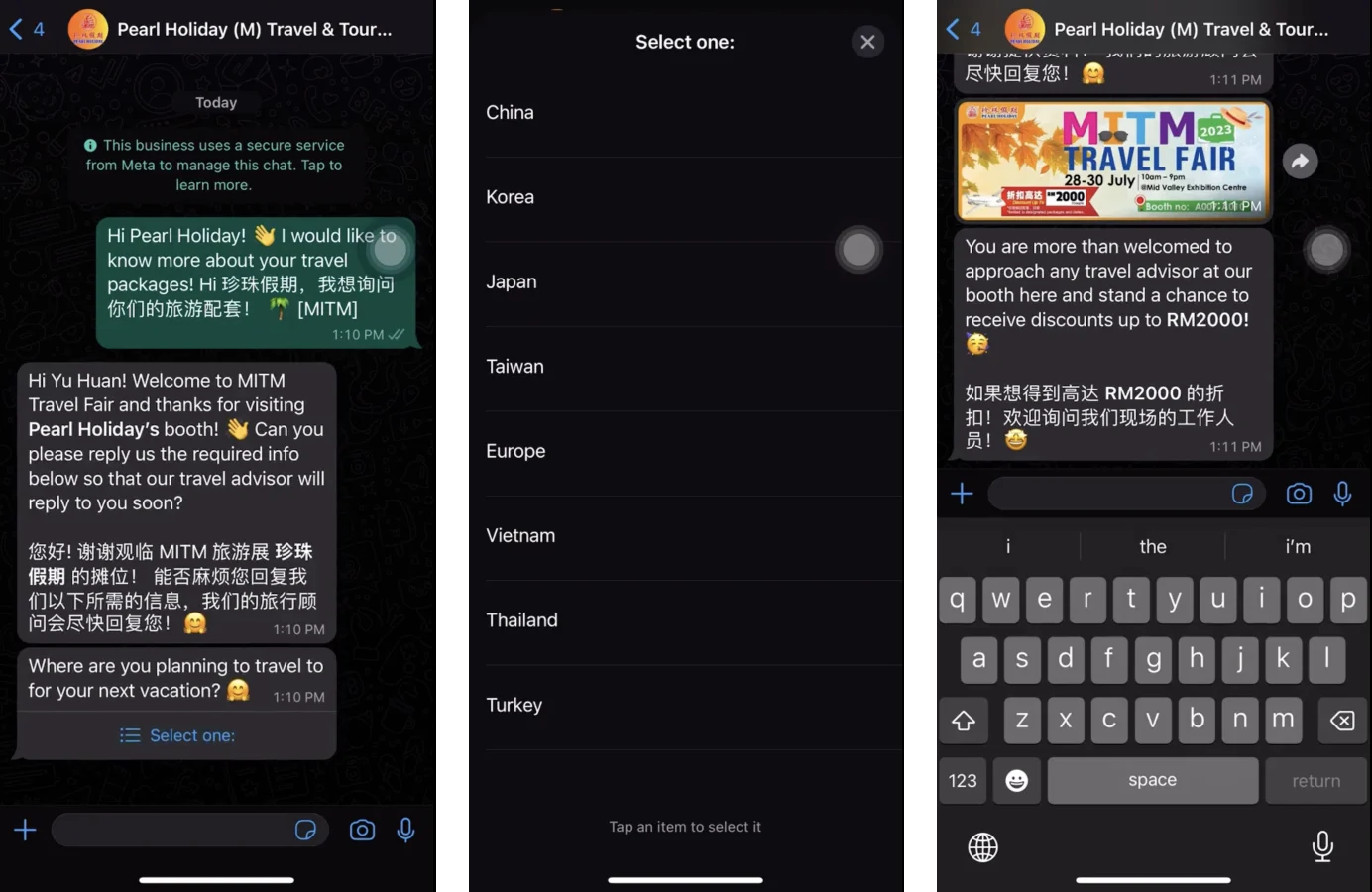
Pearl Holiday Travel & Tour is a travel agency that traditionally relied on static website forms. However, they realized that modern travelers preferred the speed of instant messaging. They integrated SleekFlow’s WhatsApp Widget on their site and automated chat flows to qualify leads and route them to agents instantly. Here are their results:
A 90% delivery rate
Nearly 2,000 new leads
A massive 80% reply rate
What you need before you start
Before adding a WhatsApp chat button, make sure you have:
a WhatsApp Business account or WhatsApp Business API setup
the phone number you want customers to message
access to your website code, tag manager, or CMS
a clear owner for inbound conversations on the business side
If you want a more branded setup, use a widget builder that lets you customise the button and generate the install code.
How to add a WhatsApp chat button to a website
SleekFlow’s WhatsApp chat widget is free and easy to access. Here’s how to install WhatsApp chat on a website:
Option 1: Add a simple WhatsApp click-to-chat link
This is the fastest method.
Create a WhatsApp link using your business number in international format. Then add that link to a text CTA, image, or button on your website.
This approach is useful when you want a lightweight setup on a contact page or landing page.
Best for:
basic websites
contact pages
campaign landing pages
businesses that do not need a floating widget
Option 2: Add a WhatsApp chat widget
A widget is the stronger option for most businesses because it stays visible across the site and creates a more seamless experience.
With SleekFlow, you can create a WhatsApp widget, customise its appearance, and generate a snippet code to install on your website.
Here is how you do it in SleekFlow:
Step 1: generate a snippet code
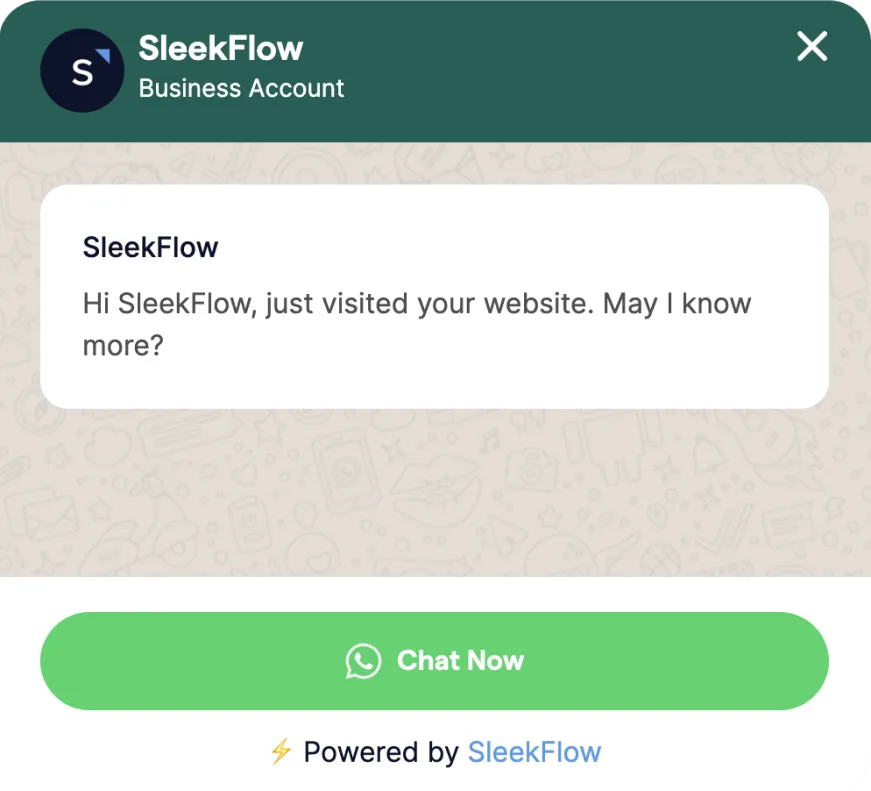
Creating a WhatsApp chat widget for your website typically involves using an official service such as SleekFlow or a tool that provides the necessary code and functionality. With SleekFlow, you can create your own WhatsApp widget by customizing the chat button and widget settings to match your brand.
Upon completing this process, you will get a unique snippet code provided on the SleekFlow platform that will be used for the next step.
Step 2: Install the WhatsApp chat widget on your website
Depending on how your website was developed, the method of installation will be different. Here are three different options:
Option 1: Add the button to a HTML website
Look for your unique snippet code, then copy and paste it into your website’s HTML.
Paste it either before the </body> tag to make it visible on each selected page, or before the </header> or </footer> tags for all pages.
The widget should be visible in the bottom right corner of your website.
This is the best option when:
You manage the site code directly
You want precise control over placement
You do not use a CMS or tag manager
If your website is built on a third-party platform, the next option is more suitable for you.
Option 2: Google Tag Manager (GTM)
If your site uses Google Tag Manager, you can install the widget without editing the source code directly.
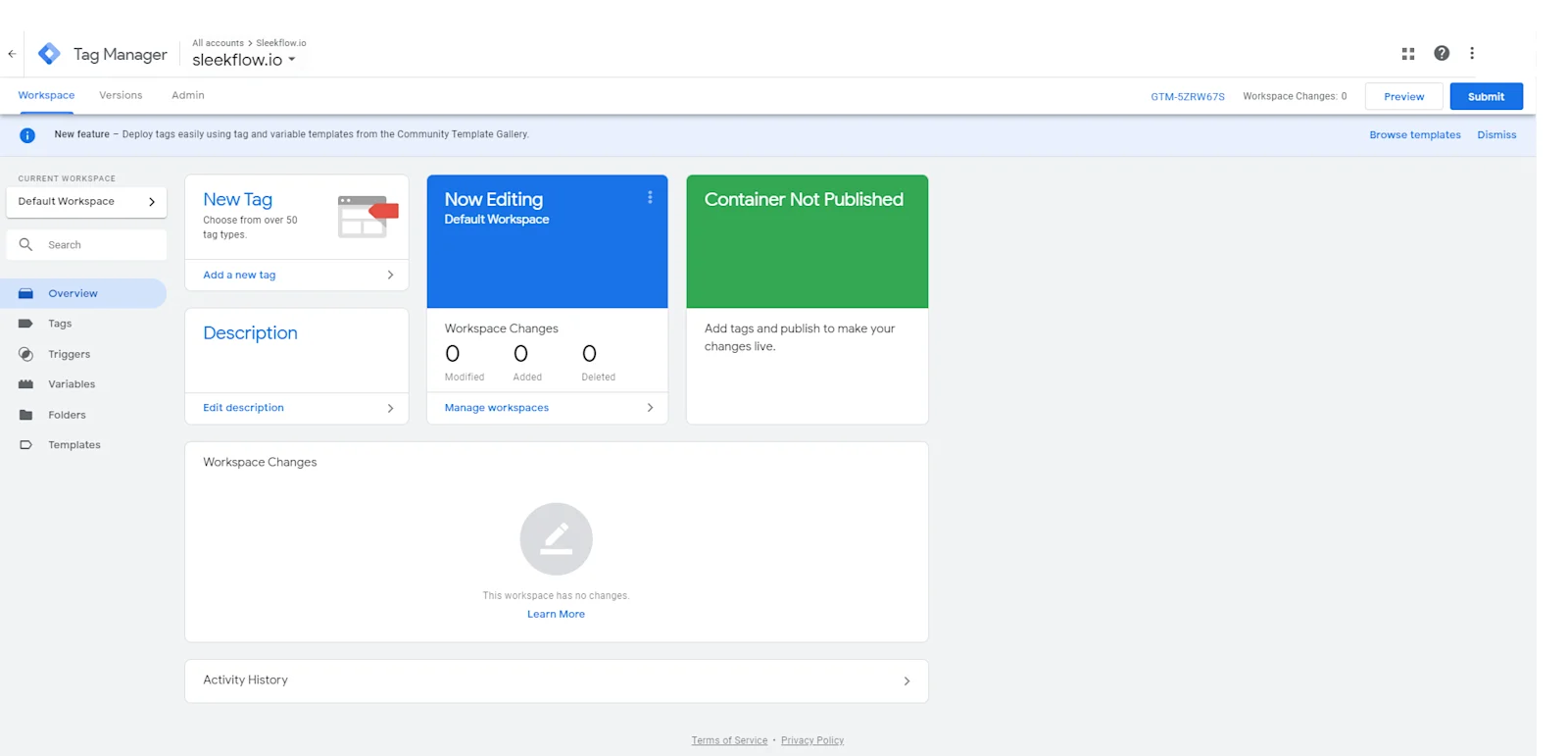
How to install a WhatsApp chat button with Google Tag Manager:
1. Create an account on GTM
Enter your company name and country.
Select the "WEB" option.
Agree to the terms and conditions and click "YES."
2. Create a Tag
Click "Add a new tag" and name it (e.g., "Sleekflow widget Tag").
Click the edit pencil icon to edit the tag.
Choose "Custom HTML" for the tag type.
3. Add the Website Messenger Tracking Code
Search for the snippet code on the SleekFlow App, copy and paste it into the "HTML" block.
Click the "Triggering” or the pencil icon to set conditions for when the code should run.
4. Set Triggers for SleekFlow widget
Select the blank box next to "All Pages."
Click the blue "Add" button on the top right.
Click "Save."
5. Check and submit the Tag
Return to your GTM account page and check the SleekFlow tag.
Click the blue "Submit" button on the top right.
Your WhatsApp widget is now available on your website.
Option 3: Adding the button to a WordPress website
For WordPress websites, the easiest way is to place the widget code in the site header or footer through a code insertion plugin or theme setting.
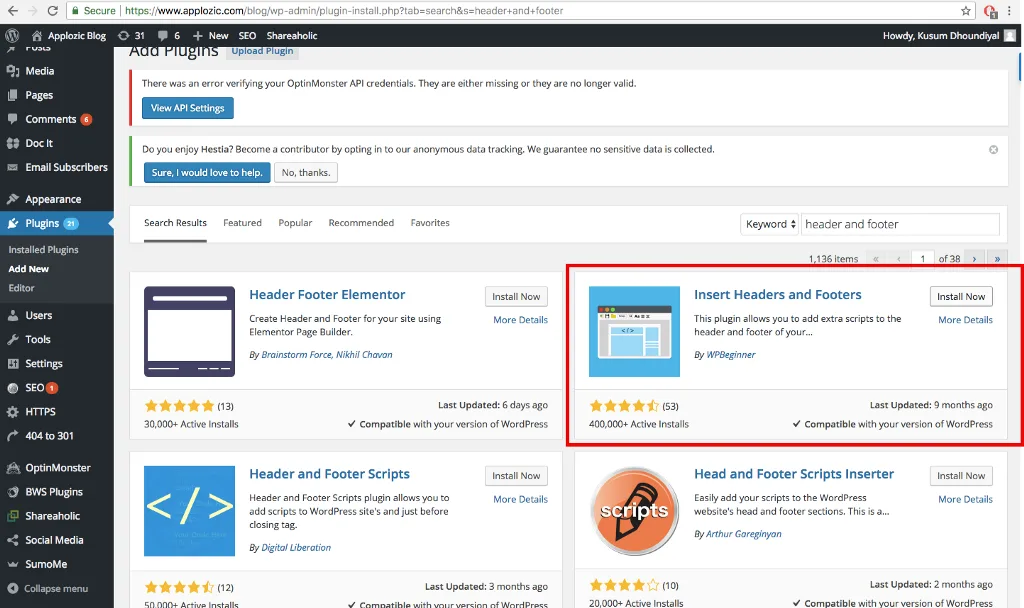
Below are the steps to integrate the WhatsApp widget into your WordPress website:
1. Log in to WordPress
Go to your website's WordPress admin dashboard.
Log in using your credentials.
2. Navigate to the Plugin Page
Click on "My Site" at the top left corner.
Then, click the "WP Admin" tab on the left.
3. Install the "Insert Headers and Footers" Plugin
In the left column, hover over "Plugins" and click "Add New."
Search for the "Insert Headers and Footers" plugin by WPBeginner.
Click "Install Now" and then "Activate" the plugin.
4. Open "Insert Headers and Footers" Settings
From the left menu, hover over "Settings."
Select the "Insert Headers and Footers" plugin from the submenu.
5. Add the Tracking Code
Find your unique snippet code on the SleekFlow platform.
Copy and paste the code into the "Script in Footer" section of the Header and Footer settings page.
Click the blue "Save" button at the bottom of the page.
6. Check the Chat Widget
Open your website to check the website messenger plugin; it should appear in the bottom-right corner.
Your website visitors can easily start chatting with your business.
How to check that your WhatsApp button works
Once installed, test the button before sending traffic to the page.
Make sure:
the button appears on the correct pages
the button is visible on both desktop and mobile
it opens the correct WhatsApp number
the pre-filled message, if used, displays correctly
the chat reaches the right inbox or team
Also test during and outside business hours if you use routing or automation.
Want to outcompete your peers with SleekFlow's help?
Book your personalised demo with SleekFlow today and unlock the potential of seamless communication
Best practices for a high-converting WhatsApp chat button
Getting the button live is only the first step. To improve results, optimise how it appears and what happens after the click.
Use a clear CTA
Do not rely on a generic “Chat now” label if your business has a stronger use case.
Examples:
Get a quote on WhatsApp
Ask about pricing
Talk to sales
Check product availability
A clearer CTA sets expectations and improves click quality.
Use a pre-filled message
A pre-filled message helps visitors start faster and gives your team context.
Examples:
Hi, I’d like to know more about this product
Hi, can I get a quote for this service?
Hi, I need help with my order
This is especially useful on product pages, service pages, and campaign landing pages.
Keep the button visible but not intrusive
A floating bottom-corner placement works well because users know where to look for help. At the same time, avoid making the widget so aggressive that it covers page content or distracts from key actions.
Route conversations to the right team
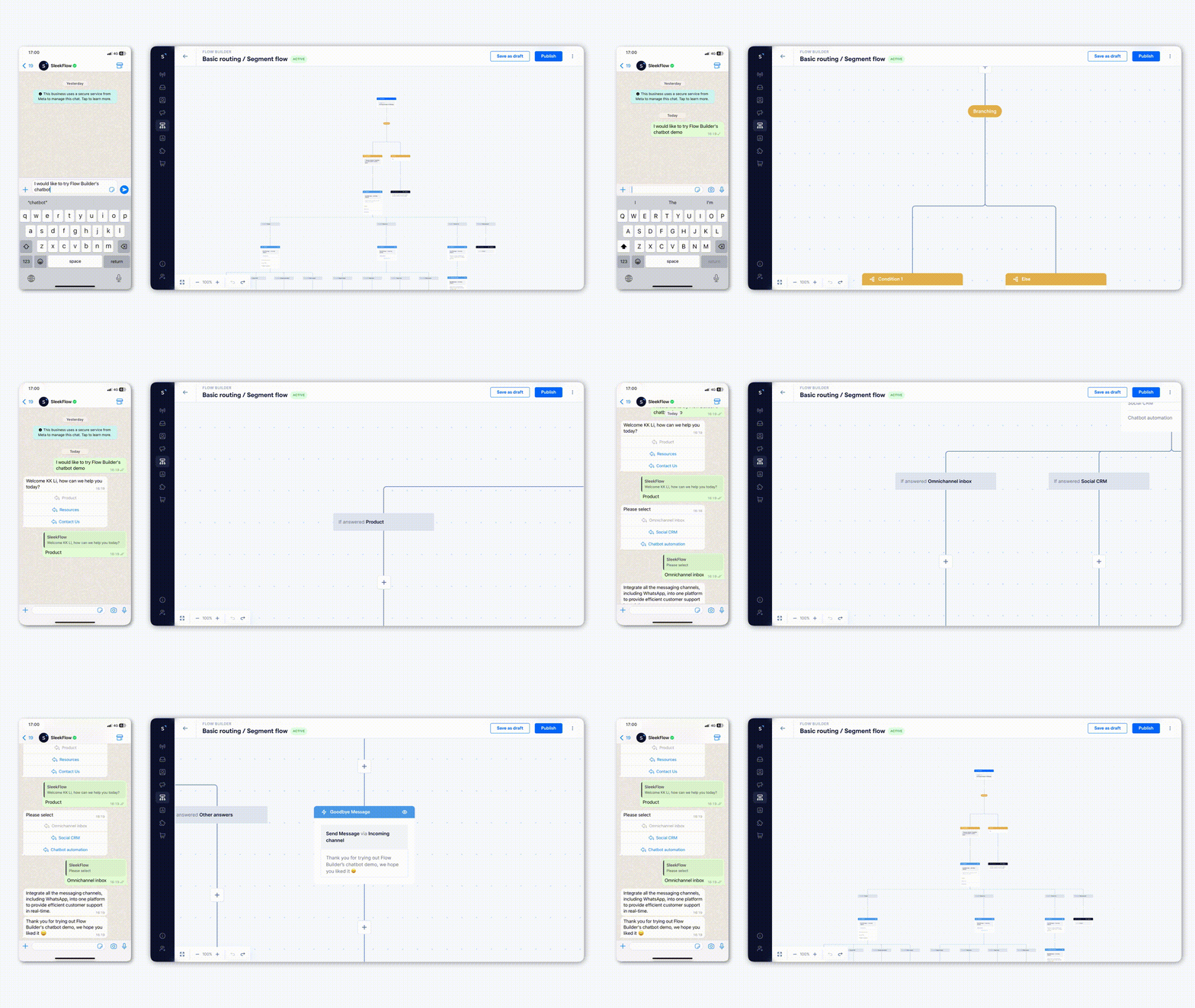
If all chats go to one person, speed drops as volume grows. A better setup routes inquiries by team, topic, or intent.
For example:
sales questions go to the sales team
order issues go to support
repeat customers go to account managers
This is where a shared inbox and automation become much more valuable than a basic link.
Set response expectations
If your team is not available 24/7, say so clearly. You can use a greeting or widget message to let visitors know when they can expect a response.
That reduces frustration and helps maintain trust.You can also make use of AI agents to respond to enquiries around the clock without burning out your team.
Connect to WhatsApp Business API now!
Connect to WhatsApp Business API and unlock powerful tools to engage your audience.
When to use a WhatsApp link or QR code instead
A floating button is not always the answer. WhatsApp Links or QR codes can also help your customers initiate conversations. Use a WhatsApp link when:
You only need one contact entry point
The site is a single-page landing page
You want a lightweight implementation
You are adding WhatsApp to email signatures, banners, or contact pages
Use a WhatsApp QR code when:
You want to connect offline and online journeys
Customers discover your business through print materials, packaging, or storefronts
You want visitors to scan and continue on mobile instantly
These formats are useful, but they should support the main website chat experience rather than replace it on most business websites.
Common WhatsApp Chat button setup issues
The button does not appear on the website
Check whether the snippet was pasted into the correct place and published properly. If you are using Google Tag Manager, confirm the trigger is active on the intended pages.
The button opens the wrong number
Review the number used in your widget or click-to-chat setup. Make sure it is in the correct international format.
The button works on desktop but not mobile
Test the implementation on multiple devices and browsers. A script conflict or theme-level issue may be affecting mobile rendering.
Leads are coming in, but no one follows up
This is usually not a button issue. It is an inbox and workflow issue. Make sure conversations are assigned, routed, and visible to the right team.


